
Add your first Skills Boost profile
1
Open the extension popup
Select Google Cloud Skills Boost Helper from the browser toolbar. Choose Add account when no profile has been configured.
2
Open your Skills Boost profile
Select Open Profile Page, sign in to Google Cloud Skills Boost if required, and find the Public profile section.
3
Make the profile public
Enable the public-profile option and save the change on Google Cloud Skills Boost. The extension cannot analyze a private profile.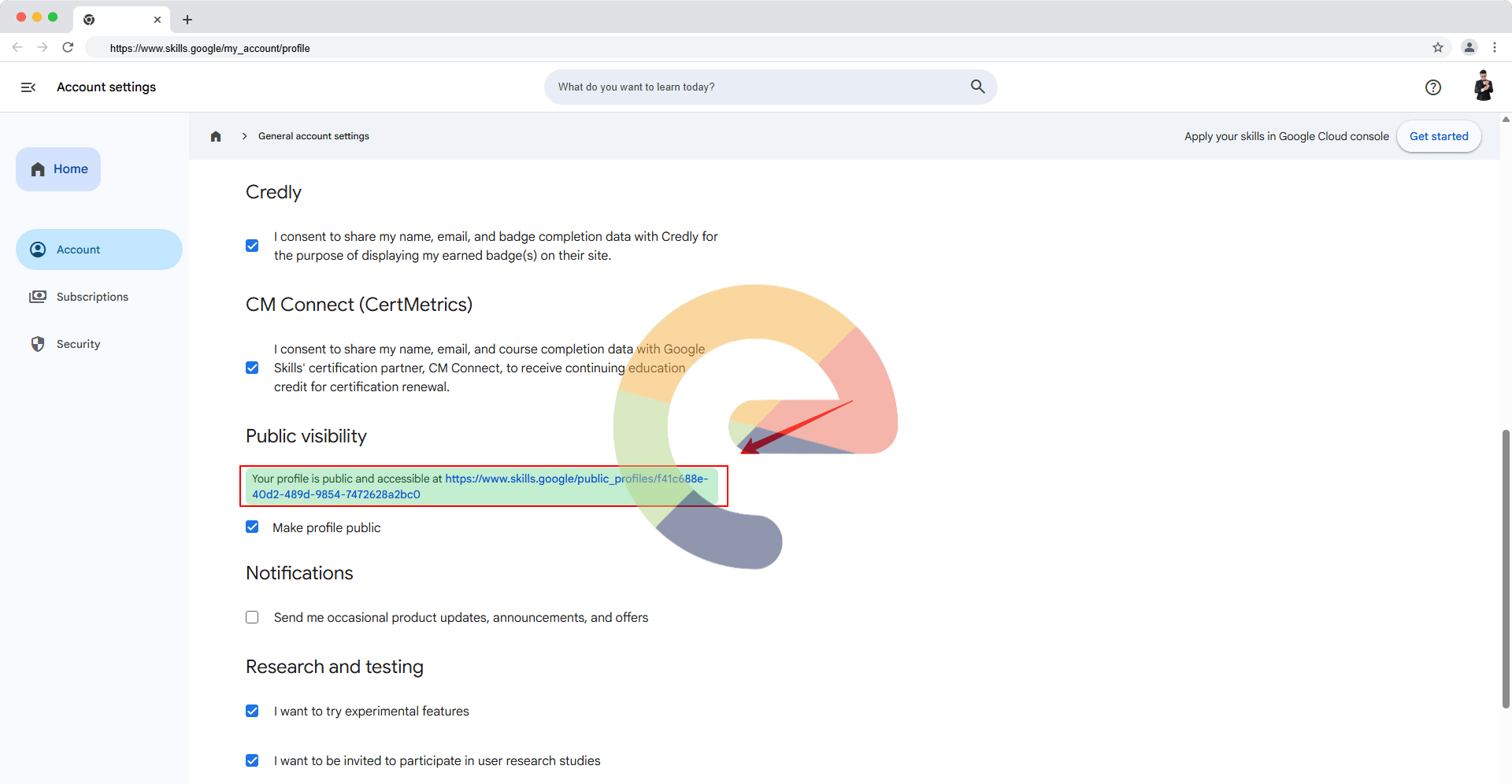
4
Copy the public profile URL
Copy the URL from the browser address bar. It should look similar to:
5
Create the account
Paste the URL into the extension and select Create Account. The extension loads the public display name, badges, and progress data.
Manage multiple accounts
From the account list, you can:- Add additional public profile URLs.
- Switch the active account.
- Refresh the selected account’s data.
- Open its public profile or badge list.
- Edit its nickname.
- Delete an account when it is no longer needed.
- Export and import extension data for backup.
Review Arcade points
The popup summarizes the active profile using public badge data and the extension’s current Arcade configuration. You can review:- Total badges and skill badges.
- Estimated Arcade points.
- Game, Trivia/Sprint, Skill Badge, and special-point categories.
- Current level and points needed for the next level.
- Recent activity and earned achievements.
- Facilitator bonus when the related program is active.
- Milestone progress, deadlines, and available bonus points.
- Prize-pool information when configured for the current season.
Use lab-page actions
On supported Google Cloud Skills Boost lab pages, the extension can add helper actions:- Solution this lab — opens a matching solution when one is available.
- ePlus Search — searches the ePlus solution index.
- Google, Bing, Brave, DuckDuckGo, Yandex, Baidu, Yahoo, or Cốc Cốc Search — uses the preferred fallback search engine.
- YouTube — searches for video walkthroughs.
- Report / Support — opens the configured support channel.
- Back to top — quickly returns to the top of long pages.
Control page enhancements
Depending on the current Skills Boost page and enabled settings, you can:- Show or hide leaderboard elements.
- Enable or disable search helpers.
- Enable or disable the toolbar points badge.
- Expand or collapse long Markdown content.
- Use quick links to badges, achievements, and public profiles.
Customize the popup
Open the options page to configure the extension experience. Available settings include nickname management, search behavior, toolbar badges, and Theme Studio with live preview. Theme Studio allows customization of popup backgrounds, accent color, Arcade points color, and primary, secondary, and muted text colors. You can apply a custom theme, sync from the current popup, or reset to the default dark theme.Back up your data
Use Data Management → Export Data before reinstalling the extension or changing browser profiles. Use Import Data to restore a valid exported JSON backup.Removing the extension or clearing its storage can delete saved profiles and settings. A public Skills Boost profile remains on Google’s service, but the extension’s account list and preferences are browser-local.